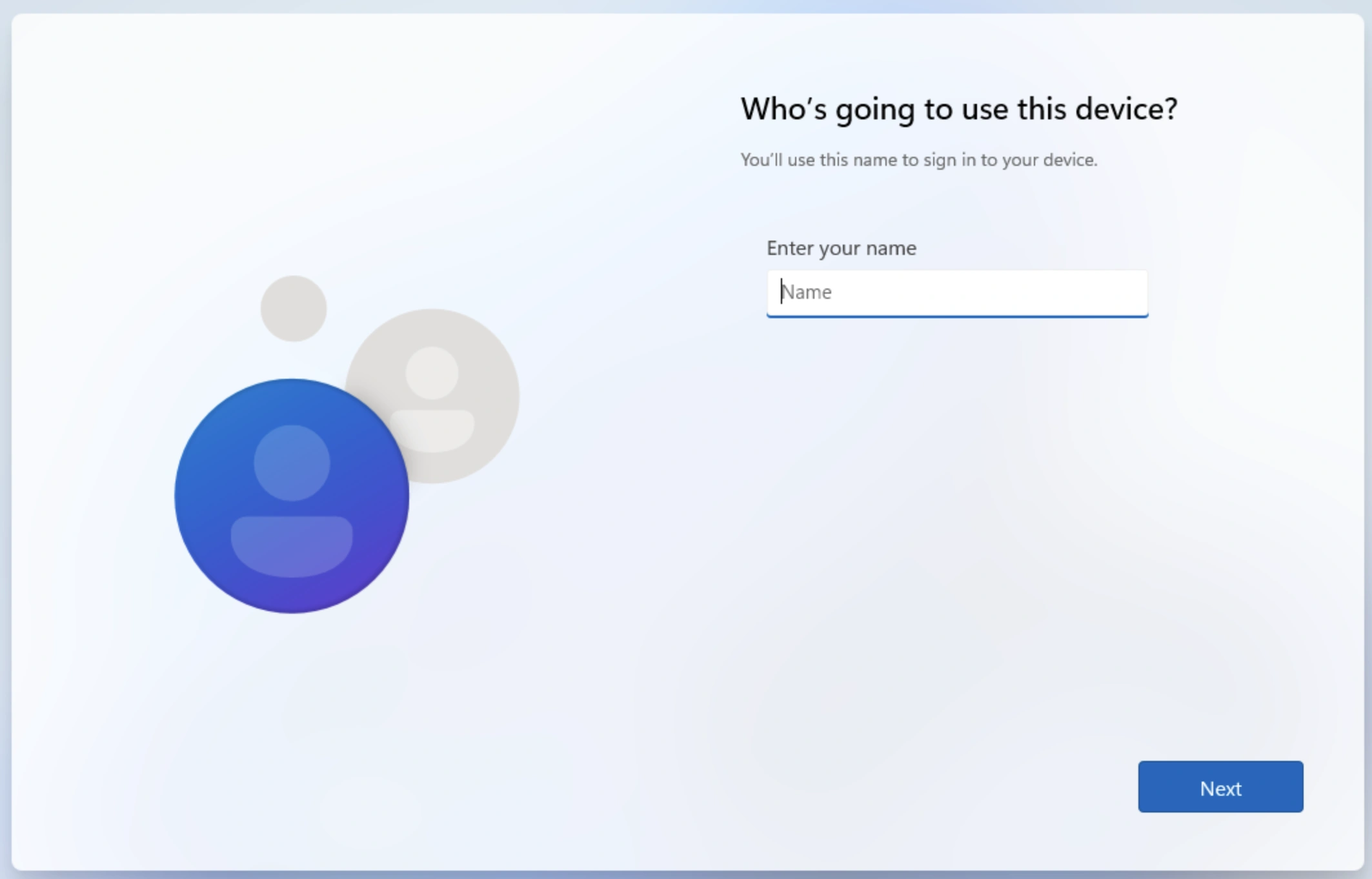
Windows 11 installation without Microsoft account
By default, Windows 11 installer ask for a Microsoft account, but for many context local account is a better choice.
Install Windows 11 with a local account
Start your Windows installation as intended. When installer ask you for your Microsoft account, disable this option with OOBE:
Use shift+f10 to open command line and execute OOBE\BYPASSNRO:
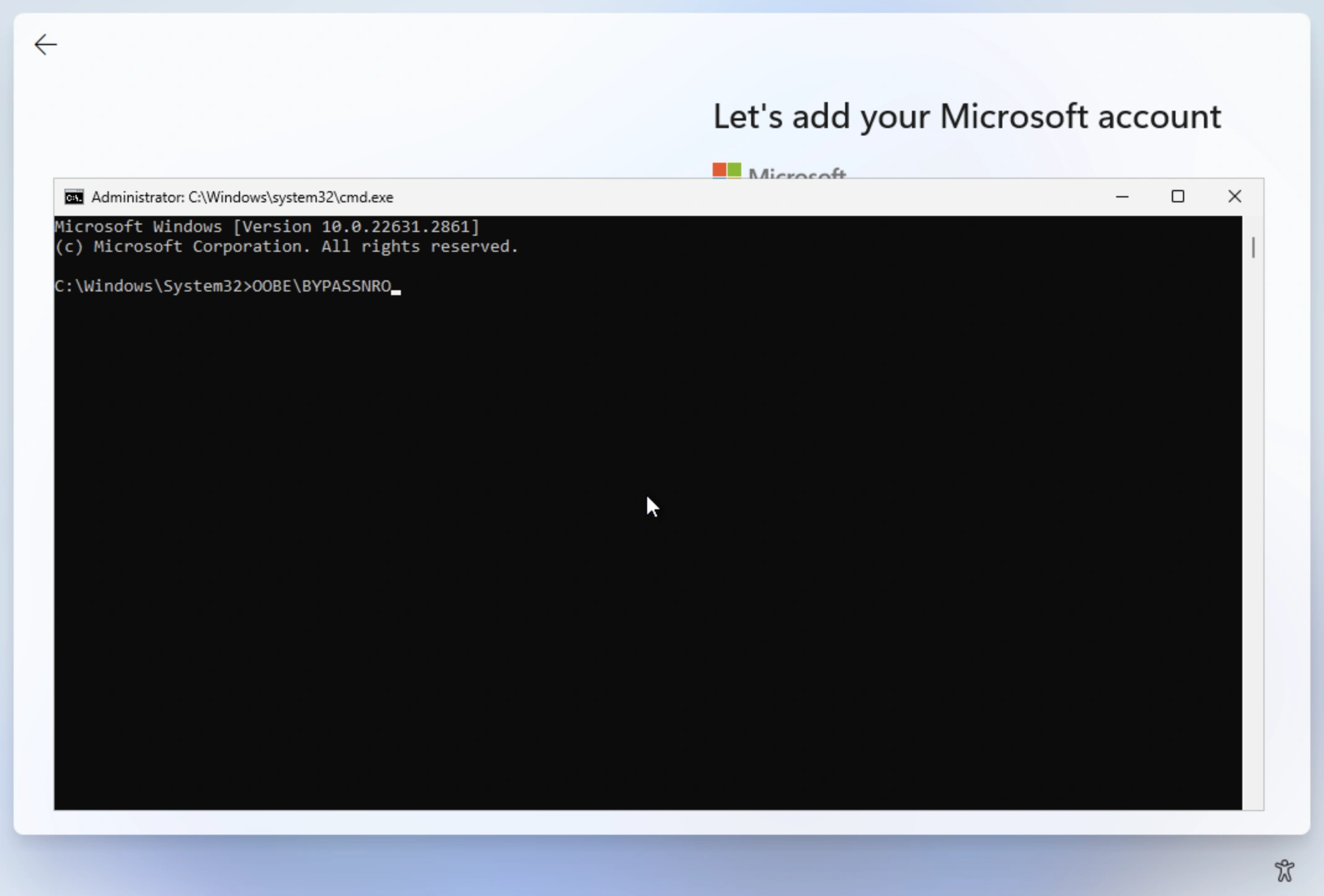
This will reboot your machine. Make sure to disconnect your network.
Continue the installation.
This time, option I don't have internet is available:
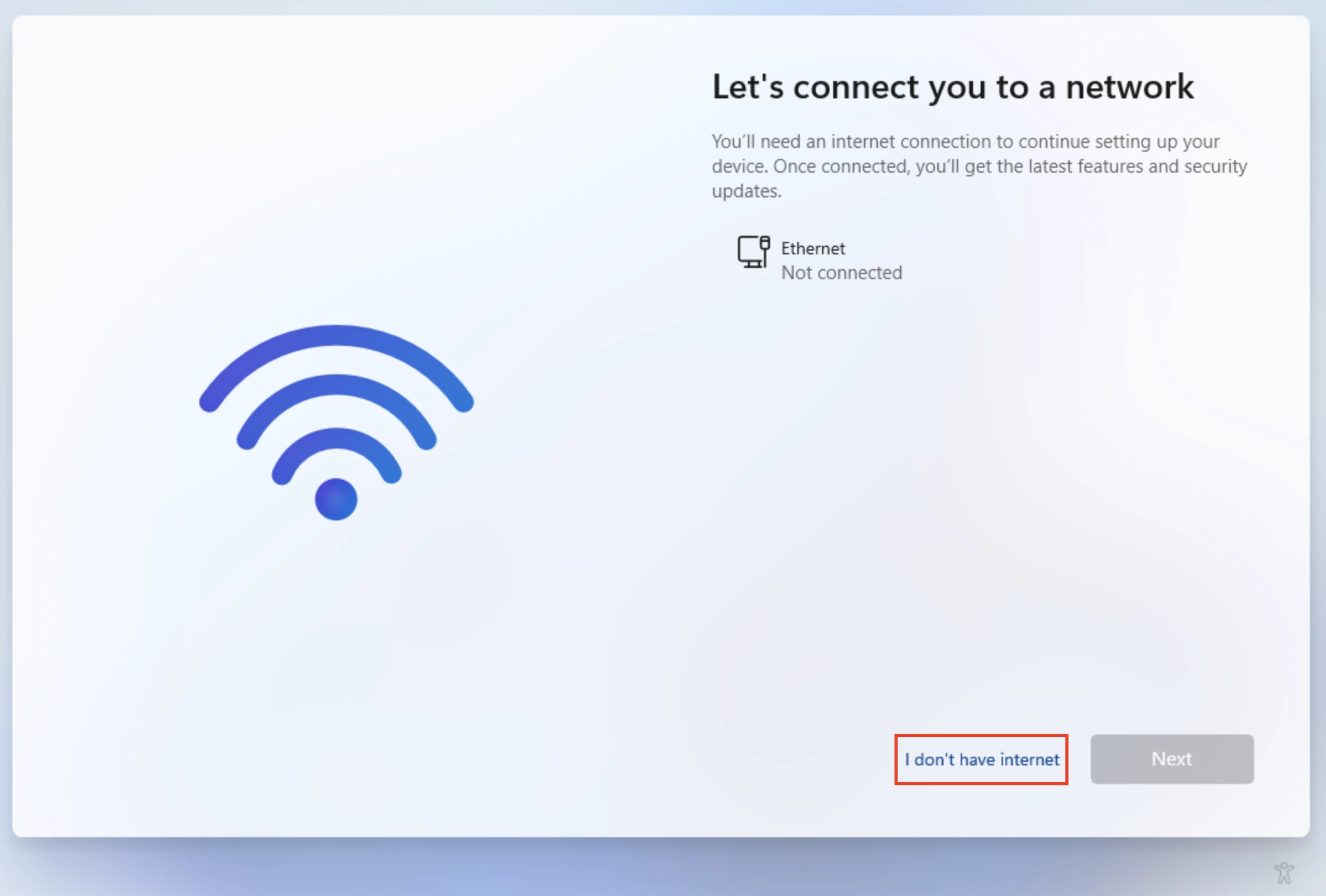
Click on it, then confirm with Continue with limited setup and you’ll be asked for details to create your local account.